![TripCreator_logo_on_white.png]](https://articles.tripcreator.com/hs-fs/hubfs/TripCreator_logo_on_white.png?height=40&name=TripCreator_logo_on_white.png)
When creating or editing a product, look for the Location Marker drop-down menu in the Location and Time section.
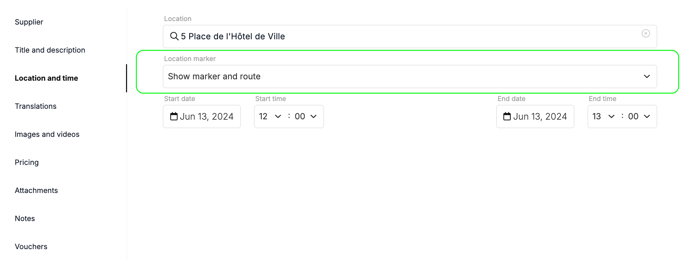
This setting controls how (or if) the item appears on the itinerary map:
-
Do not show on map – The item is completely hidden from the map (neither the marker nor connecting route is shown).
-
Show marker and route – Both the location marker and the route to/from other items are displayed.
-
Show marker but not route – Only the location marker is shown; no route is drawn between items.
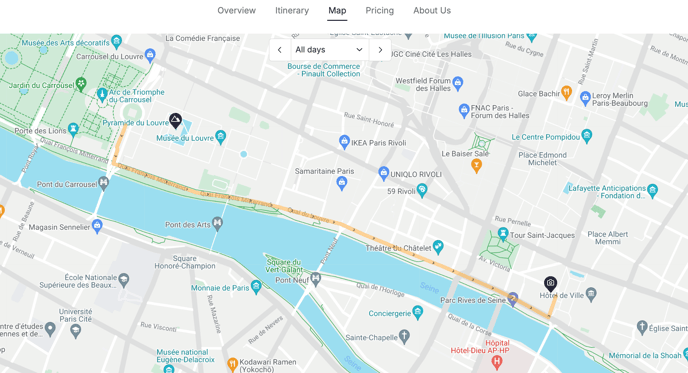
👉 Examples of two items added to an itinerary:
- If both have Show marker and route selected, markers and routes will appear for each.
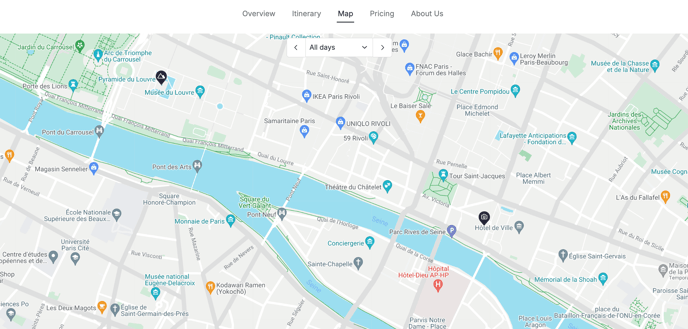
- If both have Show marker but not route selected, only the markers will appear.
- If one item is set to Do not show on map and the other to Show marker and route, only the latter will appear—displaying both its marker and a connecting route to any other items also set to show on the map with routes.
-png.png?width=688&height=339&name=do%20not%20show%20on%20map%20(one%20of%20the%20items%20is%20hidden)-png.png)